
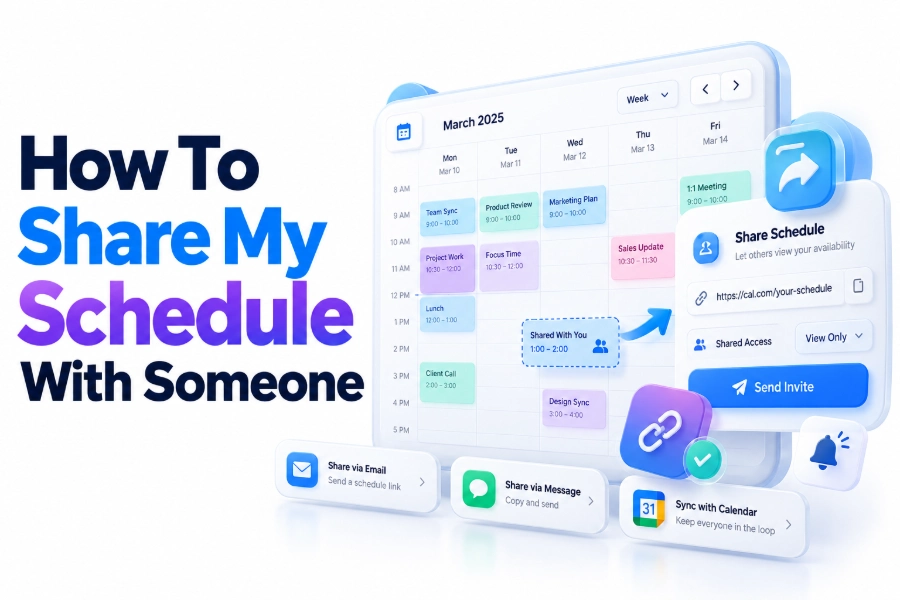
Sharing your schedule can eliminate long message threads, prevent double-booking, and help family members, colleagues, or clients coordinate with you. The best method depends on what the other person needs to do. You might share an entire calendar, show only when you are busy, invite someone to individual events, or send a booking link that displays available appointment times.
If you are wondering how to share my schedule with someone, start by deciding how much information they genuinely need. A coworker scheduling meetings may only require your free and busy times. A partner coordinating household plans might need event names and locations. An assistant managing your diary may need editing access.
This article explains the safest and most practical options, including instructions for Google Calendar, Outlook, and Apple Calendar. You will also learn how permission levels work, when to use a shared calendar instead of your personal calendar, and how to troubleshoot missing invitations or outdated events. By the end, you will be able to choose a sharing method that makes scheduling easier without exposing private information unnecessarily.
Choose the Right Way to Share Your Schedule
Calendar sharing is not a single feature with one fixed result. Most calendar services offer several ways to reveal your availability, and each option serves a different purpose. Choosing the right one helps the recipient see what they need while keeping unrelated appointments private.
For ongoing coordination, sharing a calendar is usually the most convenient option. For a single meeting, send an event invitation. If someone needs to choose a time without seeing your calendar, use a booking page. A screenshot or copied agenda works for a temporary, non-updating overview.
Share an Entire Calendar
Full calendar sharing is useful when another person needs regular access to your schedule. A spouse could view family commitments, for example, while a project team could follow deadlines and team events. Updates generally appear automatically after the recipient adds the calendar.
The recipient’s access depends on the permission you select. They may see only busy blocks, view event details, edit events, or manage sharing. Avoid granting editing or management rights unless the person is expected to maintain the calendar on your behalf.
Invite Someone to Specific Events
An event invitation is the simplest choice when the person only needs information about one appointment. The invitation can include the time, location, video meeting link, notes, attachments, and guest list without exposing anything else on your calendar.
Invitees can usually accept, decline, or respond tentatively. Their response appears in your event, making this method useful for meetings, dinners, appointments, and other plans requiring confirmation. Changes to the event can also be sent to everyone automatically.
Send a Booking Link
A booking link lets someone choose from times you have made available. The booking service checks your connected calendar for conflicts, but the visitor does not see the names or details of your existing appointments. They only see appointment slots they can select.
This option is particularly helpful for consultations, interviews, sales calls, and customer appointments. Google Calendar appointment schedules, Microsoft Bookings, Calendly, and similar services offer this type of scheduling, although features and subscription requirements differ.
Decide What the Other Person Should See
Before sharing anything, review the available permission levels. Similar settings may have slightly different names across calendar platforms, but they generally range from availability-only access to full control. The safest approach is to grant the lowest level that still serves the intended purpose.
Consider both the recipient and the contents of your calendar. Event titles may reveal medical visits, client names, travel plans, addresses, or personal routines. Even a trusted contact may not need that information simply to find an open meeting time.
Free and Busy Information
Availability-only access displays occupied periods without revealing event names, descriptions, attendees, or locations. A private appointment might appear simply as “Busy” from 2:00 p.m. to 3:00 p.m. This is often sufficient for coworkers who need to schedule around you.
Free and busy sharing reduces exposure, but it is not completely anonymous. A detailed pattern of occupied times can still reveal working hours, absences, or routines. Review what you share with external contacts, especially when your schedule includes travel or time away from home.
Event Details
Detail-viewing permission lets the recipient read information stored in your events. Depending on the platform, this may include titles, locations, descriptions, conferencing links, guest lists, and attachments. Check the service’s exact permission description before assuming a field will remain hidden.
You can often mark individual appointments as private, but privacy behavior varies. Some systems show private events as busy blocks, while editing permissions or organizational policies may affect what delegates see. Test sensitive arrangements with a nonessential event before relying on them.
Editing and Management Rights
Editing access allows someone to create, change, or delete events. Management or delegation access may also let that person share the calendar, respond to meeting requests, or act on your behalf. These permissions are designed for assistants, calendar administrators, and close collaborators.
Treat high-level access like access to a shared workspace. Grant it only to someone you trust, explain what they are allowed to change, and remove it when the arrangement ends. For a team schedule, use a separate calendar instead of giving coworkers control of your personal one.
Quick Permission Guide
- Use free and busy access when someone only needs to find open time.
- Allow event-detail viewing when the recipient needs context, locations, or instructions.
- Grant editing rights when the person is responsible for adding or maintaining events.
- Use delegation when an assistant must handle invitations and responses for you.
- Avoid public links for calendars containing personal, confidential, or location-sensitive information.
- Recheck permissions whenever a job, project, household, or working relationship changes.
Share a Schedule in Google Calendar
Google Calendar lets you share calendars you own or calendars for which you have sufficient sharing permission. The main sharing controls are easiest to access through a desktop browser. Work and school administrators may restrict external sharing or limit the detail level available outside the organization.
You can share your primary calendar, but a separate calendar is often better for household, project, or public events. It gives you cleaner permission control and prevents unrelated personal appointments from appearing in the shared view.
Google Calendar Sharing Steps
1. Open Google Calendar in a desktop browser and sign in.
2. Find “My calendars” in the left sidebar. Expand the section if necessary.
3. Point to the calendar you want to share and select the three-dot menu.
4. Choose “Settings and sharing.”
5. Open the section for sharing with specific people or groups.
6. Select “Add people and groups,” then enter the recipient’s email address.
7. Choose the appropriate permission level, such as free and busy, event details, editing, or calendar management.
8. Select “Send.”
The recipient normally receives an email invitation and may need to follow its link to add the calendar. If the calendar does not appear automatically, ask them to check spam, search for the invitation, and confirm that you used the correct Google account.
Google Calendar Permissions
Google offers several access levels. “See only free/busy” hides event details. “See all event details” provides read-only visibility. Editing options allow a recipient to change eligible events, while the highest level can include control over calendar sharing.
Some accounts also provide editing access that keeps private events visible only as busy blocks. Available wording may depend on account type and rollout status. Organizational policies can override your selection, so a work account may share less information than the setting appears to permit.
Sharing One Google Calendar Event
Open the event and add the person’s email address in the guest field. Adjust optional guest permissions if appropriate, save the event, and send the invitation. This shares that event rather than your calendar and gives the guest a clear way to respond.
Use an individual invitation when participation matters. Sharing a calendar lets someone view an event, but it does not necessarily add them as an attendee or request a response. Those are separate actions with different purposes.
Share a Schedule in Microsoft Outlook
Outlook supports calendar sharing for Microsoft 365, Exchange, and Outlook.com accounts, although the exact controls vary between versions. Common view permissions include busy times, titles and locations, or complete details. Editing and delegation options may be available for supported work accounts.
Company policies can limit external sharing, disable it entirely, or restrict high-level permissions to people inside the organization. If a sharing button is missing or disabled, the issue may be an administrator policy rather than a problem with your account.
Outlook on the Web and New Outlook Steps
1. Open Outlook and switch to Calendar.
2. Select “Share calendar” from the toolbar or Home tab.
3. Choose the calendar you want to share if you have more than one.
4. Enter the recipient’s name or email address.
5. Select their permission level from the menu beside their name.
6. Choose “Share” to send the invitation.
The person may need to accept the invitation before the calendar appears in their Outlook view. If they use another calendar application, compatibility and update frequency may differ. External recipients may receive fewer permission choices than colleagues in the same Microsoft 365 organization.
Publishing an Outlook Calendar
Some Outlook accounts allow you to publish a calendar and create an HTML or ICS link. An HTML link opens a browser-based calendar, while an ICS link lets someone subscribe through a compatible calendar app. Published calendars are normally intended for viewing, not collaborative editing.
A published link can be forwarded beyond the original recipient. Use it only for information suitable for a broader audience, and unpublish it when no longer required. Direct sharing with a named person provides stronger control for personal or business schedules.
Platform Comparison
Platform | Best sharing method | Typical permission choices | Important limitation
Google Calendar | Direct calendar invitation | Free and busy, details, edit, manage | Work or school administrators may restrict sharing
Microsoft Outlook | Direct sharing or published link | Busy, titles and locations, details, edit or delegate | Options vary by account and organization
Apple Calendar | Private iCloud invitation | View only or allow editing | Private invitees generally need an Apple Account and iCloud
Booking service | Public or private booking link | Available slots only | Advanced features may require a paid plan
Event invitation | Invite selected attendees | Details for one event | Does not provide ongoing schedule visibility
Share a Schedule in Apple Calendar
Apple Calendar uses iCloud to share calendars between Apple users. Private sharing is useful for couples, families, and small groups because invited people can view the calendar and, if permitted, add or change events. They generally need an Apple Account and must use iCloud for the shared calendar.
Apple also supports public, read-only calendar links. Anyone with the link can subscribe using a compatible application, but they cannot edit the events. Since a public link can be passed to others, it should not contain confidential appointments or sensitive location details.
Sharing from an iPhone or iPad
1. Open the Calendar app.
2. Select “Calendars” at the bottom of the screen.
3. Tap the information button beside the iCloud calendar you want to share.
4. Choose “Add Person.”
5. Enter the person’s contact information and send the invitation.
6. After they are added, decide whether to allow editing.
Only iCloud calendars can be shared this way. If the calendar belongs to Google, Microsoft, or another account shown inside the Apple Calendar app, manage its sharing permissions through the original provider instead.
Sharing from iCloud.com
Open Calendar on iCloud.com using a tablet or computer. Select the calendar information control beside the appropriate calendar, add the recipient under the sharing section, and send the invitation. Only the owner can privately share an iCloud calendar.
For read-only access beyond Apple users, enable the public calendar option and copy the subscription link. Turn public sharing off when it is no longer needed. Disabling it prevents continued access through the previously distributed link.
Create a Separate Shared Calendar
A dedicated shared calendar creates a useful boundary between personal and collaborative information. Instead of exposing your entire diary, you can add only the events relevant to a household, project, volunteer group, or client. This also makes colors, notifications, and permissions easier to manage.
Separate calendars work well for family activities, staff leave, editorial deadlines, room bookings, shift information, and school events. Participants can overlay the shared calendar with their private schedules while keeping ownership and access rules distinct.
Good Uses for a Separate Calendar
A household calendar might contain school pickups, appointments affecting the family, trips, and shared errands without including every personal commitment. A business team calendar could show deadlines, launches, holidays, and on-call rotations while employees retain control of their individual calendars.
Name the calendar clearly and add a short description explaining its purpose. Agree on who may create or change entries, what details belong in event descriptions, and how cancellations should be handled. Consistent event names make a shared schedule easier to scan.
A separate calendar can complement a wider [Internal Link: Time Management and Scheduling Tips] resource by turning planning advice into a visible routine that everyone can follow.
Shared Calendar Setup Checklist
- Give the calendar a specific, recognizable name.
- Set the correct time zone before adding recurring events.
- Add only people who need continuing access.
- Assign view or edit permissions according to each person’s role.
- Decide which types of events belong on the calendar.
- Use consistent titles, locations, and color categories.
- Avoid putting passwords, access codes, or confidential records in descriptions.
- Review former members and unused public links regularly.
- Confirm that changes and reminders behave correctly on each participant’s device.
Share Availability Without Sharing Event Details
Sometimes the goal is not to let another person follow your schedule. It is simply to find a suitable meeting time. In that situation, a booking page, free and busy view, or short list of available times protects more information than full calendar sharing.
Booking tools let you define meeting duration, available hours, notice periods, buffers, daily limits, and appointment questions. They can also block slots already occupied on connected calendars. The visitor sees bookable times rather than the underlying events that caused other times to be unavailable.
When a Booking Link Works Best
Use a booking link for repeated external scheduling, especially when several people independently need time with you. It removes the need to send new availability each time and reduces mistakes caused by someone selecting a slot that has since been taken.
Configure the page carefully before sending it. Confirm the correct time zone, video meeting location, duration, buffer period, and connected calendars. A scheduling link is only reliable when every calendar containing real conflicts is included in its availability checks.
When to Send Available Times Manually
For a sensitive or high-priority meeting, offering two or three selected times by email may feel more personal and provide tighter control. It is also practical when the recipient cannot use your booking service or when company security rules prohibit outside scheduling tools.
State the time zone and the length of each proposed slot. For example: “I’m available Tuesday from 10:00 to 10:30 a.m. or Wednesday from 2:00 to 3:00 p.m. Central Time.” Ask the recipient to confirm before you treat the time as reserved.
Protect Privacy Before Sharing
A calendar can contain more personal information than it first appears to. Titles reveal relationships and activities, locations reveal movement, and recurring events reveal routines. Descriptions may contain dial-in details, internal documents, customer information, or notes that were never intended for another reader.
Review upcoming and recurring events before granting access. Change sensitive titles, mark eligible events private, remove confidential notes, or move private appointments to a separate calendar. Do not assume that selecting a general permission will hide every field on every device.
Privacy Practices That Reduce Risk
Use neutral titles when details are unnecessary. “Appointment” reveals less than the name of a doctor, client, or legal adviser. Free and busy access is usually the right default for general availability, while detailed access should have a clear operational reason.
Public calendar links require particular care because anyone who obtains the link may be able to subscribe. They may also retain previously synchronized information for a period after access changes. For controlled sharing, invite named accounts and review permissions regularly.
Do and Don’t List
Do:
- Grant the minimum access needed for the task.
- Use a separate calendar for family, team, or public activities.
- Mark sensitive appointments private where the platform supports it.
- Test the recipient’s view when confidentiality matters.
- Remove access when a project or relationship ends.
- Include time zones when sharing availability across regions.
Don’t:
- Give management access simply to make a calendar visible.
- Publish a personal calendar containing addresses or private routines.
- Store passwords or confidential case details in event descriptions.
- Assume an event invitation shares your entire schedule.
- Assume removing a person instantly deletes every cached or exported copy.
- Send calendar screenshots when live updates are important.
Fix Common Calendar Sharing Problems
Most sharing failures come from account mismatches, permission restrictions, missed invitations, or synchronization delays. Start by confirming the exact calendar and email address involved. People often have separate personal and work identities within the same calendar application.
Ask the recipient what they see rather than assuming the calendar is absent. It may be listed but hidden, unchecked, or displayed in a different color. They may also have added a static copy rather than subscribing to a calendar that receives updates.
The Invitation Never Arrived
Verify the spelling of the email address, then ask the recipient to check spam, junk, trash, and filtered folders. They should also search for the calendar owner’s email address or the calendar name. Removing and reinviting the person may generate a fresh invitation.
The recipient must accept with the intended account. An invitation sent to a work address may not become available while they are signed into a personal account. Organization-to-organization sharing may also be blocked by either company’s administrator.
The Calendar Is Visible but Details Are Hidden
This usually means the person has free and busy permission, the events are private, or an administrator has capped external visibility. Reopen the calendar’s sharing settings and inspect the permission assigned specifically to that recipient.
Remember that a broad organizational or public setting may interact with individual permissions. If confidential information is involved, do not solve the problem by making the entire calendar public. Ask an administrator for help when a workplace policy prevents the required access.
Updates Are Delayed
Direct sharing within the same calendar ecosystem is generally faster than subscription-based sharing between different services. ICS subscriptions may refresh periodically rather than immediately. Changes can therefore take time to appear in Apple Calendar, Outlook, Google Calendar, or another third-party app.
Confirm that the recipient subscribed to the calendar rather than importing an ICS file once. An imported file is a snapshot and normally will not update. If necessary, remove the old calendar and add the live subscription again.
Events Appear at the Wrong Time
Incorrect times usually result from mismatched time-zone settings. Check the calendar’s time zone, the event’s time zone, the device setting, and the recipient’s display preference. Daylight-saving changes can make recurring cross-region events particularly confusing.
Include a time-zone label when proposing times outside a shared calendar. For recurring international meetings, review dates around seasonal clock changes because regions may switch on different weekends—or may not observe daylight saving at all.
Use Schedule Sharing Effectively Over Time
Sharing a calendar is not a one-time setup. Permissions, participants, and working arrangements change. A short review every few months helps prevent old colleagues, contractors, household members, or public subscribers from retaining access longer than intended.
Open the calendar’s sharing settings and verify every listed person, group, organization, and public link. Remove unnecessary entries, reduce permissions that are too broad, and confirm who owns important team calendars. Ownership should not depend solely on someone who may leave the group.
Set Clear Expectations
Tell recipients what the shared schedule represents. A calendar showing meetings may not include focus time, travel, or personal commitments, so an empty period is not always an invitation to book. Explain whether people may add events directly or should request approval first.
Teams benefit from simple conventions. They might use tentative status for proposed dates, include owners in event titles, or place preparation notes in a linked document. For related practices, see [Internal Link: Shared Calendar Best Practices].
Review Notifications
A busy shared calendar can overwhelm participants with alerts. Decide whether members need notifications for every new event, every change, or only events they personally attend. Notification controls are often separate from access permissions, so each person may need to adjust their own settings.
Avoid relying on shared-calendar alerts for urgent changes. If a cancellation affects travel, childcare, staffing, or a client commitment, contact the relevant people directly. A calendar update records the change, but it does not guarantee that everyone notices it promptly.
Practical Sharing Examples
Different relationships call for different setups. The most secure and useful choice is the one that provides enough scheduling information without granting unnecessary access. These examples show how to apply that principle in common situations.
For a Coworker
Share free and busy information if the coworker only needs to arrange meetings. Let them view titles and locations when they coordinate related work and those details are appropriate. Editing access is rarely necessary unless they actively maintain a team calendar.
For a Partner or Family Member
Create an iCloud, Google, or Outlook family calendar for shared commitments. Add school events, travel, household appointments, and plans affecting others. Keep private work meetings and personal appointments on separate calendars, then display both together in your own app.
For an Assistant
Use supported editing or delegation controls rather than handing over your password. Specify whether the assistant may create meetings, change existing events, view private appointments, or respond to invitations. Review access immediately when the working arrangement changes.
For Clients or Customers
Send a booking link configured with your available hours, minimum notice, meeting length, and buffer time. This lets clients reserve suitable appointments without seeing who else you meet or why other periods are unavailable.
For a One-Time Plan
Send an event invitation containing the confirmed date, time, location, and relevant notes. There is no reason to share an ongoing calendar when the person only needs information about one dinner, appointment, interview, or meeting.
Conclusion
The right sharing method depends on the recipient’s role and the amount of information required. Use an event invitation for one plan, availability-only access for basic coordination, a booking link for appointment selection, and a dedicated shared calendar for ongoing family or team activity. Reserve editing and delegation permissions for people who genuinely manage your events.
Before granting access, review event titles, descriptions, locations, attachments, recurring appointments, and public-link settings. Start with the least revealing permission and expand it only when there is a practical need. Google Calendar, Outlook, and Apple Calendar all support controlled sharing, but account types and workplace policies can affect the options available.
The simplest answer to how to share my schedule with someone is to match the method to the task: share only one event when one event is relevant, share availability when timing is the concern, and share a separate calendar when collaboration is ongoing. Check the recipient’s view, confirm that updates synchronize, and remove access when it is no longer needed.
Frequently Asked Questions
Can I share my schedule without showing event names?
Yes. Choose a free and busy or availability-only permission. The recipient will see blocked periods but not event titles or descriptions. Exact labels vary by platform, and organizational policies may further restrict what appears.
Can someone edit my calendar after I share it?
Only if you grant an editing, management, or delegation permission. Standard view access does not allow changes. Review the selected permission carefully because higher levels may let a recipient create, move, or delete events.
Can I share a calendar with someone using a different app?
Yes, often through an ICS subscription or public calendar link. Cross-platform calendars may refresh more slowly than directly shared calendars, and editing usually is not supported. Never publish sensitive information through a broadly shareable link.
Why can’t I share my work calendar externally?
Your organization may restrict external calendar sharing through administrator policies. The sharing control may be missing, disabled, or limited to free and busy information. Contact your IT administrator rather than publishing the calendar through an unapproved service.
Is a booking link the same as calendar sharing?
No. A booking link shows appointment times that you have made available without exposing the underlying calendar. Calendar sharing gives continuing visibility into events or busy periods, depending on the permission assigned.